
Accurate time synchronization is critical for the stability, security and reliability of a NetScaler (Citrix ADC) environment. Network Time Protocol (NTP) ensures that the appliance maintains the correct system time by synchronizing with trusted time sources.
Without proper NTP configuration, may experience authentication failures, logging inconsistencies, SSL certificate problems, high availability synchronization issues and Global Server Load Balancing (GSLB) instability.
This article explains why NTP configuration is important on NetScaler appliances, outlines common issues caused by missing or incorrect synchronization and provides step-by-step instructions for configuring and troubleshooting NTP services.
Why NTP matters on NetScaler
NetScaler relies on accurate system time for authentication, secure communication, event logging and synchronization between systems.
1. Authentication failures: SAML and Kerberos
NetScaler Gateway often acts as a SAML Service Provider (SP). If the time difference between the NetScaler appliance and the Identity Provider (IdP) exceeds the accepted threshold, authentication can fail.
A common SAML error is:
“Invalid time in the Assertion sent by IdP”
Kerberos authentication also requires tight time synchronization between NetScaler and Active Directory domain controllers. If the clock drift exceeds the allowed Kerberos skew, Single Sign-On (SSO) and other Kerberos-based authentication flows can fail.
2. High Availability (HA) problems
In a NetScaler HA deployment, the primary and secondary nodes must maintain accurate time.
Incorrect time synchronization can contribute to:
HA synchronization failures
Command propagation issues
File synchronization problems between nodes
Service instability and network disruption
In severe troubleshooting split-brain scenarios where both appliances assume the primary role
NTP does not replace correct HA design, network connectivity or heartbeat configuration, but it is an essential prerequisite for predictable HA operation.
3. Logging and troubleshooting issues
Accurate timestamps matter during incident response, security investigations and performance analysis.
If a NetScaler appliance is not synchronized:
Syslog timestamps may be incorrect.
Correlating events with backend servers, firewalls and identity providers becomes difficult.
SIEM events can be misleading or appear in the wrong order.
Troubleshooting takes longer because evidence across systems no longer aligns.
Keeping NetScaler, firewalls, backend servers, monitoring platforms and SIEM systems synchronized to trusted time sources makes root-cause analysis significantly more reliable.
4. SSL/TLS certificate validation issues
SSL/TLS certificates depend on correct system time.
If the NetScaler clock is wrong:
A certificate may appear expired.
A certificate may appear “not yet valid.”
SSL handshakes may fail.
Secure application access can be rejected.
These errors can directly affect user access to published applications, Citrix Gateway, APIs and load-balanced web services.
5. GSLB synchronization concerns
Global Server Load Balancing (GSLB) exchanges health and site information between locations. Inconsistent time can complicate monitoring, event correlation and troubleshooting of site-level behaviour.
Potential symptoms include:
Incorrect traffic distribution
Inaccurate health monitoring
False site-down decisions
Delayed failover operations
Maintaining accurate time across all GSLB sites helps ensure reliable operations and clearer diagnostics.
6. Licensing issues
NetScaler licensing mechanisms also depend on correct system time. An incorrect appliance clock can contribute to:
License validation failures.
Licenses appearing expired or not yet valid.
Communication issues with licensing services.
Confusing entitlement or renewal diagnostics.
Configure an NTP server on NetScaler
Configure NTP from the NetScaler CLI with the following steps. The command supports poll intervals expressed as powers of two; valid minpoll and maxpoll values range from 4 to 17.
Step 1: Add the NTP server
add ntp server <ntp_server_ip> -minpoll 6 -maxpoll 10

Example:
During normal operation of an HA (High Availability) pair, the NTP configuration is automatically synchronized from the primary node to the secondary node. It is important to note that the NTP configuration is not stored in the ns.conf file. Instead, it resides in the dedicated file, located at /nsconfig/ntp.conf
Parameter explanation
<ntp_server_ip> – IP address or hostname of the NTP server
-minpoll 6 – Minimum polling interval
-maxpoll 10 – Maximum polling interval
Step 2: Set the preferred NTP server
set ntp server <ntp_server_ip> -preferredNtpServer YES

This marks the chosen NTP server as the preferred synchronization source when multiple NTP servers are configured.
Step 3: Enable NTP synchronization
enable ntp sync
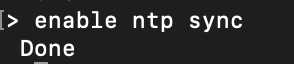
After enabling synchronization, the appliance will begin communicating with the configured NTP server.
Verifying NTP Configuration
After configuration, verify that the appliance can reach the NTP server and synchronize correctly.
Check Configured NTP Servers
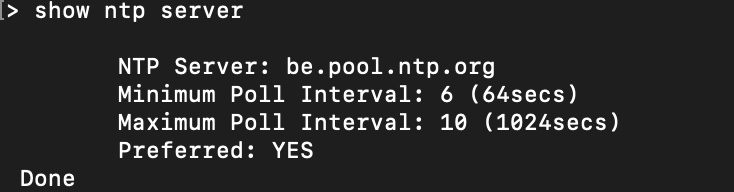
show ntp server
This command display information about the configured NTP servers. It indicates the minimum and maximum polling interval. In addition you can retrieve if the NTP server is listed as preferred NTP server if multiple NTP servers are defined.
Check NTP Synchronization Status
show ntp sync

This command confirms whether synchronization is enabled and active.
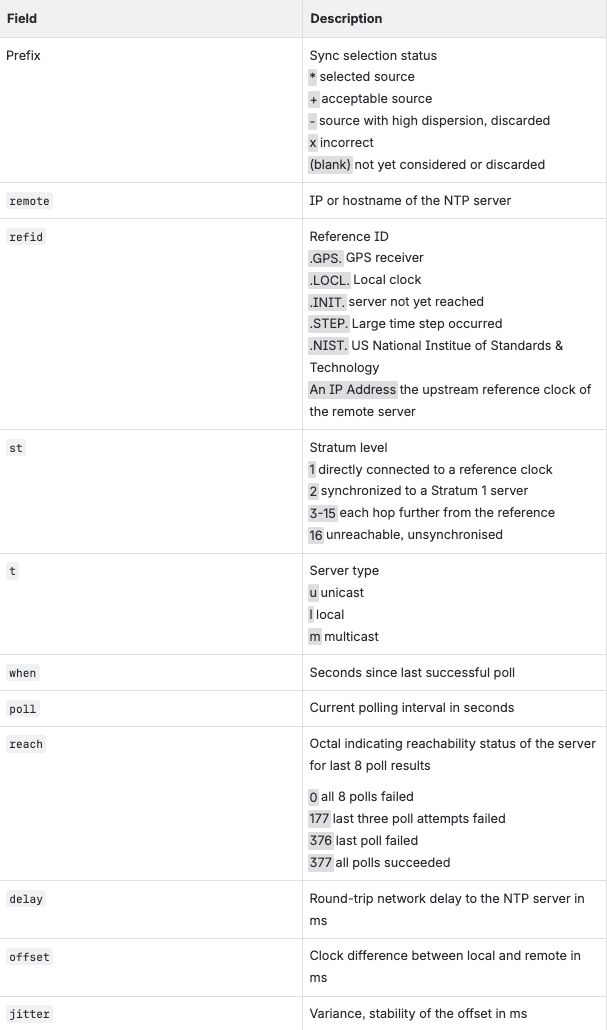
Check Detailed NTP Status
sh ntpstatus
This command provides detailed information about:
Synchronization state
Time offset
Selected synchronization source
Polling status

Table explains output details
Common NTP issues and troubleshooting
Firewall or Routing Issues
NTP communication uses UDP port 123.
If firewalls block UDP 123 traffic or the NetScaler appliance cannot route to the NTP server, synchronization will fail.
Typical error message:
“No server suitable for synchronization found”
Troubleshooting Checklist
Verify the following:
UDP port 123 is allowed through firewalls
Proper routing exists between the appliance and the NTP server
DNS resolution works if hostnames are used
The NTP server itself is reachable and operational
Understand NTP source IP behaviour
The source IP used for NTP traffic depends on the deployment method.
When Using an LB Virtual Server
If the NTP server is accessed through a Load Balancing virtual server, the source IP will be:
SNIP (Subnet IP)
When Not Using an LB Virtual Server
If a Load Balancing virtual server is not used, the source IP will be:
NSIP (NetScaler IP)
Understanding this behavior is important when configuring firewall rules.
When an NTP server is accessed through a Load Balancing virtual server, the NetScaler uses the SNIP as the source IP for the NTP requests.
On the primary node, this usually works because it owns the SNIP and can successfully send and receive NTP traffic.
On the secondary node in an HA pair, the situation is different. The secondary node does not own the floating SNIP while it is in the secondary state. Since it cannot source traffic from the active SNIP, it typically cannot synchronize its time through the LB virtual server.
Best practice for HA deployments, Citrix generally recommends configuring the NTP server using its real IP address rather than through a load balancing virtual server. This allows each node to communicate with the NTP server independently using its own NSIP, ensuring that both HA nodes remain synchronized regardless of their HA state.
Review NTP logs
NTP-related logging is available directly on the appliance:
text/var/log/ntpd.log
This log can help you investigate:
Synchronization attempts.
Connectivity failures.
NTP time adjustments.
Server reachability and polling behaviour.

NTP query
To query an NTP server without actually adjusting the system clock you can use command:
ntpdate -q <ntp_server_ip>

NTP update
When a time correction is needed, an immediate time update form the NTP server can be forces using command:
ntpdate -u <ntp_server_ip>

Manually correct time on NetScaler
If the appliance time is significantly incorrect, manual synchronization may be required.
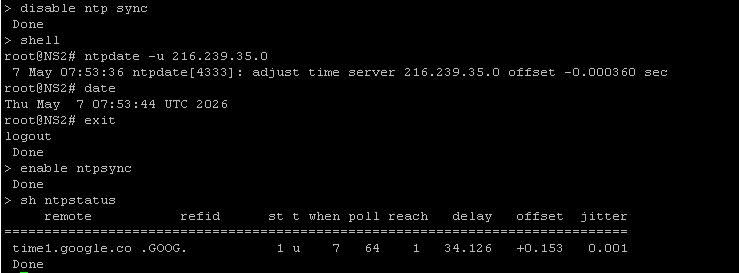
Step 1 – Disable NTP Synchronization
disable ntp sync
Step 2 – Access the Shell
Enter the BSD shell from the NetScaler CLI.
Step 3 – Perform Immediate Time Synchronization
ntpdate -u <ntp_server>
This command forces an immediate time update from the specified NTP server.
Step 4 – Verify Date and Time
date
Confirm that the system date and time are correct.
Step 5 – Re-enable NTP Synchronization
enable ntp sync
Step 6 – Repeat on Secondary HA Node
If the appliance is part of a High Availability pair, repeat the same process on the secondary node. The NTP configuration is synchronized between both nodes in the High Availability pair. The time synchronization process itself runs on each node separately.
NetScaler NTP best practices
To maintain a stable and secure environment, consider the following best practices:
Use at least two reliable NTP servers for redundancy
Prefer internal enterprise NTP servers when possible
Ensure firewall rules allow UDP 123 communication
Monitor synchronization status regularly
Keep HA nodes synchronized with identical NTP settings
Validate time synchronization after upgrades or migrations
Regularly review NTP logs for errors or drift issues
If preferred NTP server rely on DNS, add additional NTP server based on IP address.
Conclusion
NTP configuration is a critical component of every NetScaler deployment. Proper time synchronization ensures stable authentication, reliable HA operation, accurate logging, secure SSL communication and consistent GSLB behavior.
By correctly configuring and monitoring NTP services, administrators can avoid a wide range of operational and security problems while improving the overall reliability of the Citrix NetScaler infrastructure.
Contact us for more information or schedule a quick call directly with one of our experts.