
How to see which NetScaler VIP is consuming your bandwidth
When you see throughput peaks on your NetScaler (Citrix ADC), the key question is simple: which virtual server (VIP) is generating the load?
Whether you are troubleshooting spikes, investigating potential abuse, or analysing long‑term usage trends, nsconmsg and the newnslog files give you precise historical and real‑time visibility at VIP level.
Step 1 – Find the right newnslog file
If you want to analyse historical throughput for a specific date and time, start by locating the correct newnslog file for that period.

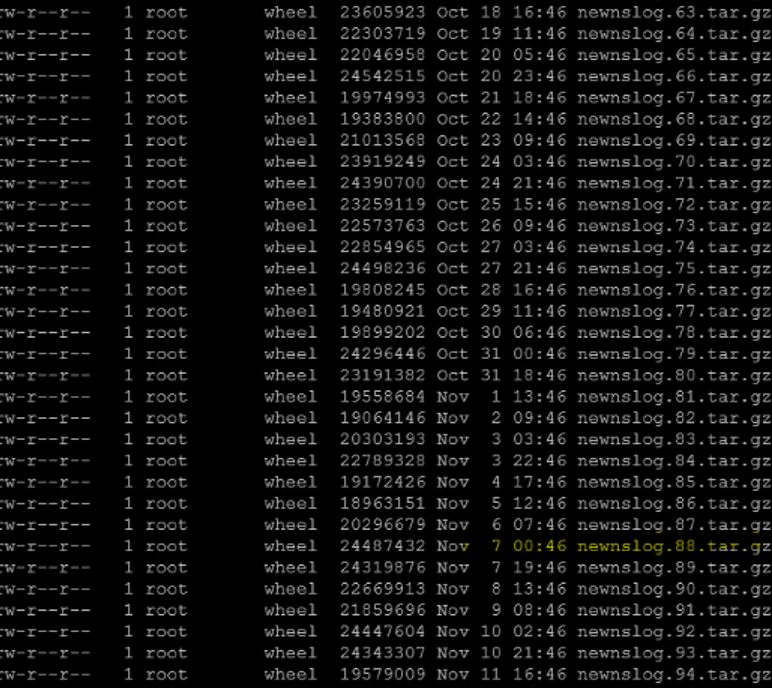
Identify the newnslog archive that matches the day and time you want to investigate, for example:

In this example, we want to investigate peaks on 06.11 at 11:15:42, so newnslog.88.tar.gz is the relevant file. This is what the example would look like::
Step 2 – Check for throughput peaks
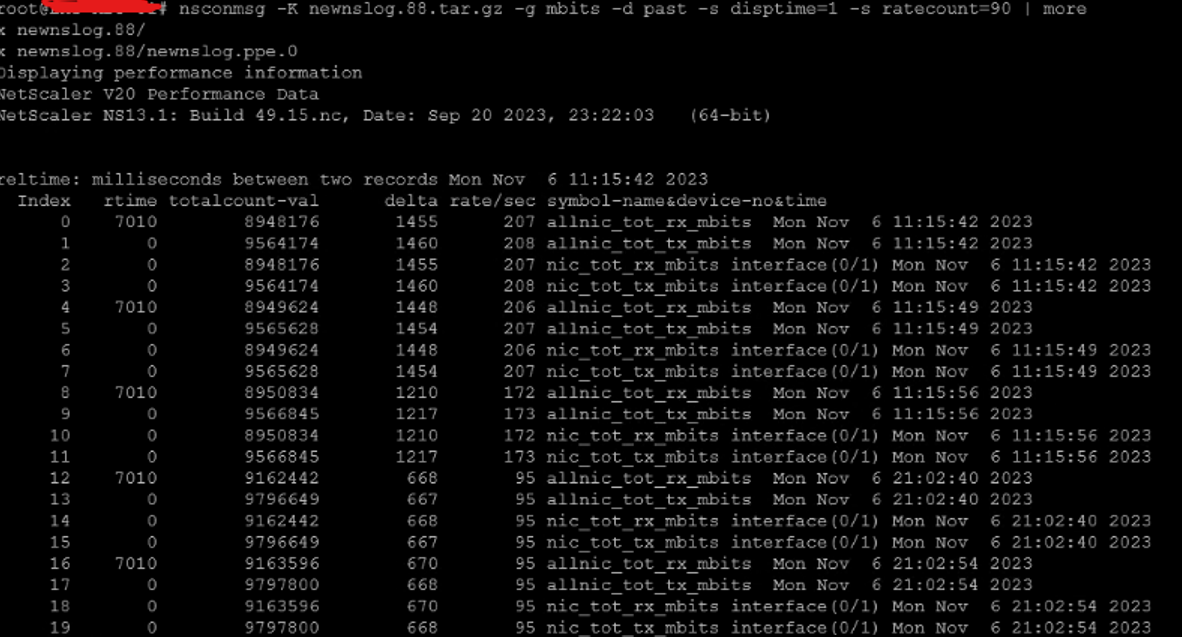
To check if throughput exceeded a specific threshold (for example 90 Mbps), run:

If you are running a VPX 1000 with a normal baseline around 500 Mbps, you might increase the threshold:

This lets you detect meaningful spikes relative to your environment.
The output shows timestamps where total throughput exceeded the threshold.
What the parameters do
-K newnslog.88.tar.gz– read from the selected log archive.-g mbits– display throughput in Mbps.-d past– analyse historical data.-s disptime=1– include timestamps.-s ratecount=90– only show entries above 90 Mbps.
Step 3 – Identify which VIP consumed the traffic
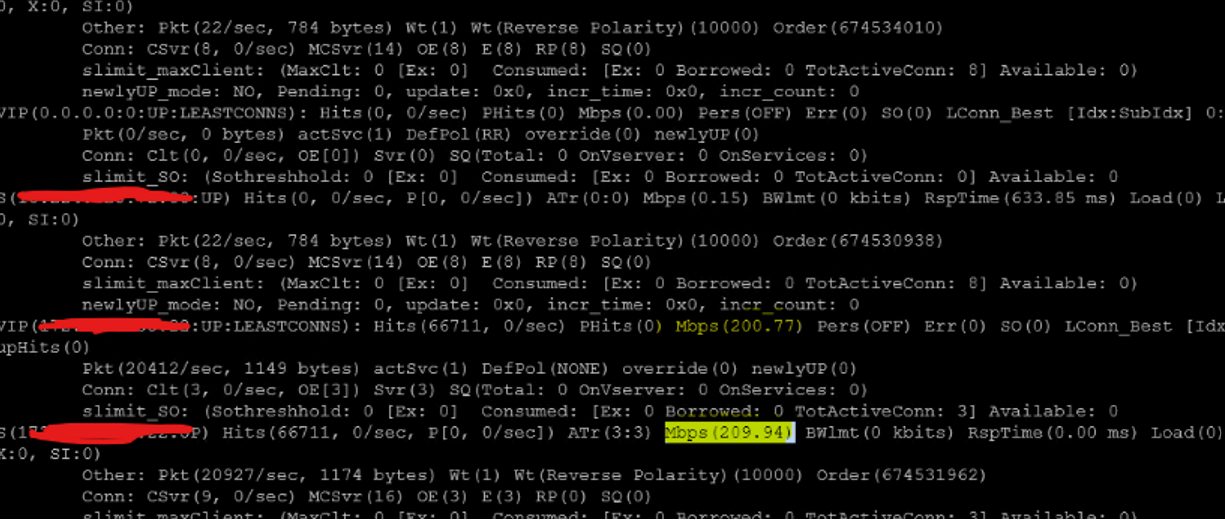
Once you know the exact time of the spike, the next step is to find which VIP (or backend service) is responsible. To do this use:

Explanation
-s ConLb=3– show load‑balancing virtual server statistics.-d oldconmsg– dump historical connection messages.-s time=...– filter on the exact timestamp of the spike.
The output includes:
VIP name.
Backend services.
Throughput in Mbps.
Connections per second.
Response times.
You now have a clear view of which virtual server was driving the load at that moment.
Step 4 – Filter VIPs by traffic range with grep
In busy environments, there may be many VIPs in the output.
You can narrow down the list by filtering on a throughput range using grep.
Example – show VIPs between 100.00 and 999.99 Mbps:

This regex returns VIPs with throughput between 100 and 999 Mbps.
Step 5 – Use the current log instead of an archive
To analyse the active newnslog instead of an archived file:

Example – filter between 10.00 and 99.99 Mbps:
Adjust the [0-9] expressions in the pattern to match the range you care about, for example two or three digits before the decimal.
Step 6 – Search for a specific throughput value
Sometimes monitoring tools give you an exact Mbps value from an alert (for example 161.47 Mbps).
You can search directly for that value in the ConLb output:


This makes it easy to correlate NetScaler logs with external monitoring alerts that report specific values or security events.
Step 7 – What to do once you know the VIP
After identifying the virtual server responsible for the spike:
Validate whether the traffic is expected (backup jobs, batch processes, maintenance windows).
Check backend service health and performance.
Look for unusual connection patterns or sudden growth in client IPs.
Validate against security monitoring tools: Cross‑check with your security monitoring and WAF logs.
Investigate potential DDoS, scraping or abusive behaviour if the pattern looks suspicious.
Why this method works so well
Using nsconmsg with newnslog archives gives you precise, timestamped visibility into historical NetScaler throughput and VIP‑level consumption.
With a few targeted commands you can:
Detect and confirm traffic spikes.
Pinpoint exactly which VIP generated the load.
Filter by throughput ranges or specific Mbps values.
Quickly distinguish between normal high‑load events and potential performance or security incidents.
For busy Citrix ADC / NetScaler environments, this approach is fast, reliable and invaluable when you are troubleshooting performance or security incidents on NetScaler environments.
Need more expert advice? Book a meeting with one of our experts.