
Bot violations not visible in NetScaler Console despite events in ADC logs
When Bot violation events appear in NetScaler ADC logs but not in NetScaler Console dashboards, reports, or Security Analytics views, the issue is often not Bot Management itself. It can indicate that the analytics pipeline is not processing or displaying telemetry correctly.
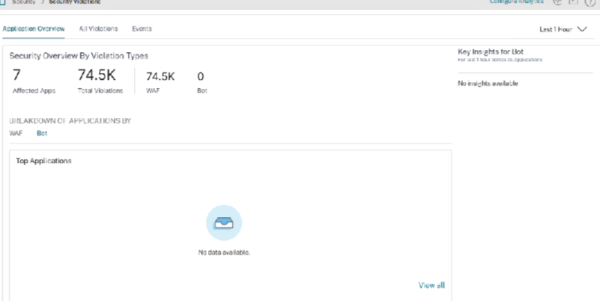
In this article we explain how to troubleshoot this specific NetScaler Console issue and restore Bot violation visibility by restarting the analytics streaming and processing services.
Symptoms
You may observe one or more of the following:
- Bot violation events are visible in NetScaler ADC logs.
- Bot-related counters or events are present on the ADC.
- No corresponding Bot violation data appears in NetScaler Console dashboards, reports, or analytics views.
- Security Analytics displays incomplete or missing Bot-related events.
- The Security > Security Violations > Bot view does not show new events for an application, even though violations are visible on the ADC.
NetScaler Console can display security violations across Network, WAF, and Bot categories when the required analytics configuration is enabled.
Cause
This issue can occur when there is a disruption in the NetScaler Console analytics pipeline between the components that produce telemetry and the components that process it.
The following services are responsible for processing and forwarding analytics data:
- Lstreamd, this stands for LogStream Daemon. It is a background service responsible for collecting, streaming, and forwarding telemetry, AppFlow, security, WAF, Bot, and analytics events from managed NetScaler instances into the ADM analytics pipeline. In simple terms, it acts as the producer in the analytics architecture.
- Dataprocessing, this is the analytics service that consumes, processes, enriches, and stores telemetry data received from NetScaler instances.
In simple terms, lstreamd is the producer and dataprocessing is the consumer and processor.
If either service becomes unresponsive or encounters synchronization issues, Bot violation events can remain visible in the ADC logs but never reach, or be processed by, the relevant NetScaler Console analytics views.
Before restarting services
Confirm that Bot analytics is configured for the affected virtual server.
In NetScaler Console:
- Go to Infrastructure > Instances > NetScaler.
- Select the relevant managed NetScaler instance.
- Choose Configure Analytics.
- Select the virtual server, Edit Analytics.
- Enable Bot Security Violations.
- Under Advanced Options, select Logstream.
- Deploy the configuration to the NetScaler instance.
You can also validate Bot events directly on the ADC:
show bot statsThis command displays Bot traffic and violation statistics, including logged, dropped, redirected, CAPTCHA, rate-limit, IP reputation, and static-signature events.
If Bot violations are present on the ADC and analytics is correctly enabled, continue with the recovery procedure below.
Resolution
Restart both the LogStream service (lstreamd) and the analytics data processing service (dataprocessing) on NetScaler Console.
This refreshes both sides of the analytics pipeline:
- The component that receives and forwards telemetry.
- The component that processes telemetry and populates analytics records.
Step 1: Restart the lstreamd service
Log in to the NetScaler Console shell and run:
cd /var/mps/telemetry/etc/
./lstreamd.rc restart
This restarts the lstreamd process responsible for collecting and forwarding telemetry data.
Step 2: Restart the data processing services
Run the following commands:
cd /mps/analytics/scripts/
sh stop_dataprocessing.sh
sh start_dataprocessing.sh
This restarts the analytics engine that consumes, enriches, and stores the incoming telemetry data used by NetScaler Console dashboards, reports, and security views.
Verification
After restarting the services:
- Generate a new Bot violation, or wait for fresh Bot-related events.
- Confirm that the new event still appears in the NetScaler ADC logs.
- Check the relevant NetScaler Console views:
- Security Analytics dashboards
- Security > Security Violations > Bot
- Bot Analytics
- Event reports
- Confirm that new Bot violation events now appear as expected.
NetScaler Console’s Bot analytics and Security Violations views provide details such as violation occurrences, affected applications, detection messages, graphs, and recommended actions.
Important: Focus on new events generated after the restart. Events that were not processed while the analytics pipeline was disrupted may not always appear retrospectively.
Technical explanation
The procedure targets both sides of the NetScaler Console analytics data flow:
| Component | Function | Effect of restart |
|---|---|---|
lstreamd |
Produces and streams telemetry events from managed NetScaler instances | Restores or refreshes event collection and forwarding |
dataprocessing |
Consumes, processes, enriches, and stores analytics records | Restores processing and dashboard/report visibility |
Restarting both services helps recover from scenarios where telemetry events are produced on the ADC but are not transferred, consumed, or processed correctly in NetScaler Console.
Summary
If Bot violations are visible in NetScaler ADC logs but missing from NetScaler Console, first validate that Bot Security Violations and Logstream analytics are enabled for the affected virtual server.
When configuration is correct but new Bot events still do not appear in Security Analytics, restart both lstreamd and dataprocessing on NetScaler Console. This refreshes the producer and consumer components of the analytics pipeline and typically restores end-to-end visibility of new Bot violation events.
For complex or recurring NetScaler Console analytics issues, Blubyte can help validate Bot Management, telemetry configuration, analytics health, and the wider NetScaler security architecture. Contact us for more information.