
How to change and troubleshoot NetScaler LOM Passwords on MPX and SDX
Lights Out Management (LOM) provides out-of-band access to NetScaler hardware, even when the appliance operating system or network services are unavailable. Because LOM can control power, expose a remote console and provide hardware-health visibility, its credentials and network access must be treated as privileged infrastructure access.
This guide explains how to change or reset a NetScaler LOM password on MPX and SDX appliances, unlock a read-only LOM interface, and avoid common password-length and compatibility issues.
Important: LOM behaviour, default credentials, menu names, password limits and supported commands can vary by appliance family and BMC firmware version. Validate the procedure against the documentation for your exact MPX or SDX model before changing production credentials.
What is NetScaler LOM?
Lights Out Management gives administrators out-of-band access to NetScaler hardware. It can be used to:
Access the hardware remotely.
Perform power operations.
Monitor hardware health.
Open a remote console.
Troubleshoot the appliance when NetScaler ADC services or the appliance OS are unavailable.
This procedure applies to Citrix NetScaler MPX and SDX hardware appliances.
Before you change a LOM password
LOM access is a recovery path. Losing it during an incident can turn a simple remote fix into a data-centre visit.
Before changing any password:
Create a new administrator account where the LOM firmware supports it.
Set the password for the new account.
Log out.
Test that the new account can log in successfully.
Only then modify or remove the existing account.
Also make sure that:
The LOM interface is reachable from a restricted management network.
You have a documented emergency-access procedure.
You record the correct LOM IP address, account name and escalation contacts in your privileged-access documentation.
You test the new password in a private browser window or separate browser session to avoid cached credentials.
LOM password length and characters
LOM password support depends on BMC firmware and platform generation. Older systems may truncate longer passwords or reject certain special characters.
For maximum compatibility, use a password between 12 and 19 characters, including uppercase letters, lowercase letters, numbers and standard ASCII special characters.
General Recommendations
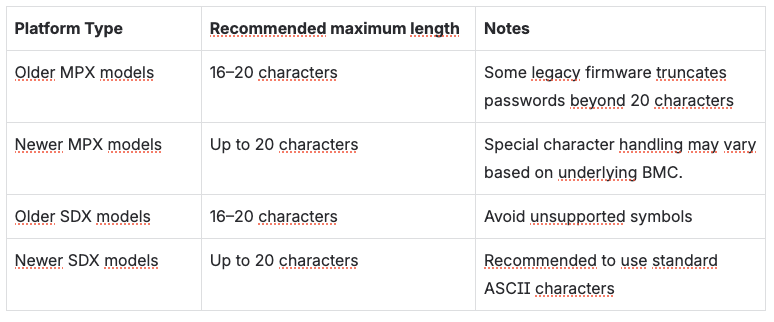
Password recommendations
For MPX systems, NetScaler documents a maximum LOM password length of 20 characters when using the LOM GUI and 19 characters when using IPMI from the host environment. Passwords longer than 16 characters may require the 20 length option in the ipmitool command.
Avoid:
Spaces
"
'
\
`
Non-ASCII characters
Recommendation: Always verify LOM access immediately after changing a password. Some firmware versions silently truncate values longer than 19 or 20 characters, which can make a correctly entered password appear to fail.
Default LOM access details
On many current NetScaler hardware platforms, the initial LOM address is 192.168.1.3, the default username is nsroot, and the initial password is the case-sensitive appliance serial number. The first sign-in can enforce a password change.
However, this differs across older appliances and LOM firmware versions. Some SDX documentation and support articles identify nsroot / nsroot as the default.
Do not rely on a generic default-password assumption. Check the documentation for the exact appliance model or the physical serial-number label before attempting initial access.
Locked LOM port
By default a LOM port is locked, all items are greyed out and cannot be edited. This behavior applies to NetScaler MPX 9100/16000 and SDX 9100/16000. On these platforms, System Lockdown is enabled by default and is automatically triggered after certain events, including:
Removing and reapplying AC power to the appliance
Performing a factory reset of the BMC firmware
Uploading a new SSL certificate via the LOM web UI
Installing BMC firmware version 2.12.12 or later (enabled by default upon first deployment)
Unlock LOM on MPX 9100 and 16000
Connect to the NetScaler appliance CLI.
Enter the shell:
shellCheck the current lockdown status:
ipmicfg133.bsd -lockdownExample output:
System Lockdown Mode: Locked
Disable lockdown:
ipmicfg133.bsd -lockdown offExpected output:
Done.Verify the status:
ipmicfg133.bsd -lockdownExpected output:
System Lockdown Mode: Unlocked
Refresh the LOM Web UI, the Settings menu should now be editable.
Unlocking LOM on SDX
SSH to the XenServer (Dom0) using the root account (the password is identical to the SVM nsroot password).
Run the following command:
/usr/sbin/sdx_bmc_unlock.shRefresh the LOM Web UI.
The previously greyed-out configuration options should now be available for editing.
Change LOM Password from GUI
Step 1: Connect to the LOM Interface
Connect your workstation to the management network.
Open a web browser.
Access the LOM IP address using HTTPS, by default the LOM IP is 192.168.1.3
https://<LOM-IP>Log in using the current administrator credentials.
By default, the credentials are:
account: nsroot
Password: <Alliance serial number>
Step 2: Navigate to User Management
The exact menu depends on the hardware vendor.
Common Locations
Administration → User Administration
Configuration → Account Services
Step 3a: Add new user
Select free slot for new user.
Click Add user.
Enter the password.
Confirm the password.
Set permissions.
Save or apply the changes.
Step 3b: Modify the User Password
Select the administrator account.
Click Edit or Modify User.
Enter the new password.
Confirm the password.
Save or apply the changes.
Step 4: Verify Access
Log out from the LOM GUI.
Log back in using the new password.
Confirm successful authentication.
Change/Reset LOM Password Using CLI
Depending on platform support, the LOM password can be changed or reset using the ipmitool command line utility directly from the NetScaler CLI, without requiring access to the LOM GUI.
This approach is particularly useful in the following scenarios:
The LOM password has been lost.
After a LOM firmware upgrade, login with nsroot account fails with "password incorrect".
The ipmitool can be used on MPX and SDX platform.
On MPX level logon to the NetScaler CLI to use the ipmitool, the tool makes modification on LOM level.
On SDX level logon to Citrix Hypervisor management IP ( XenServer Dom0) with root-account, the password is identical to the SVM nsroot password.
To be able to change the password the <user-id> of the account to be changed is needed. The user-id can be retrieved using command:
ipmitool user list 1
Syntax
ipmitool user set password <user-id> <new-password>
Example to change the user-id password to MyNewPass123!
ipmitool user set password 2 MyNewPass123!
Common LOM password issues
Unable to log in after changing the password
Possible causes
The password exceeds the firmware-supported length.
Unsupported special characters were used.
The BMC firmware silently truncated the password.
The wrong user ID was changed through ipmitool.
A browser saved or cached old credentials.
The wrong default-password model was assumed for the specific appliance.
Recommended resolution
Reset the password with a shorter value, preferably 12–19 characters.
Use only standard ASCII characters.
Confirm the LOM user ID with ipmitool.
Try a private / incognito browser window.
Clear browser cache or saved credentials if necessary.
Test the account immediately after the change.
LOM security best practices
Restrict LOM network access to dedicated management networks only.
Use unique, strong LOM credentials; do not reuse NetScaler ADC or SVM credentials unless a platform specifically requires this for initial access.
Create and test a second administrative LOM account before altering the active recovery account.
Keep passwords within the length and character support of the exact BMC firmware.
Rotate LOM passwords regularly through a documented privileged-access process.
Keep LOM / BMC firmware current, following vendor guidance and a tested maintenance procedure.
Restore System Lockdown after making approved configuration changes where appropriate.
Document emergency access, user IDs, network paths and ownership securely.
Conclusion
LOM is an essential recovery interface for NetScaler MPX and SDX appliances. You can change or reset LOM passwords through the Web UI or with ipmitool, but platform-specific password limits, special-character handling and System Lockdown can make the process less straightforward than expected.
Keep passwords compatible with your firmware, test a new account before modifying existing credentials, and immediately validate login after every change. A secure, documented and tested LOM setup ensures your team retains out-of-band access when it matters most.
Need some help? Get in touch. Click here!